Before buying furniture
The sofa, table or armchair spotted in store is tried on the photo of your own living room, in your light, before ordering it.
In the photo of your room, one object is replaced by another, sofa, mirror, lamp, and everything else stays identical. The workflow is shown here, no account needed.
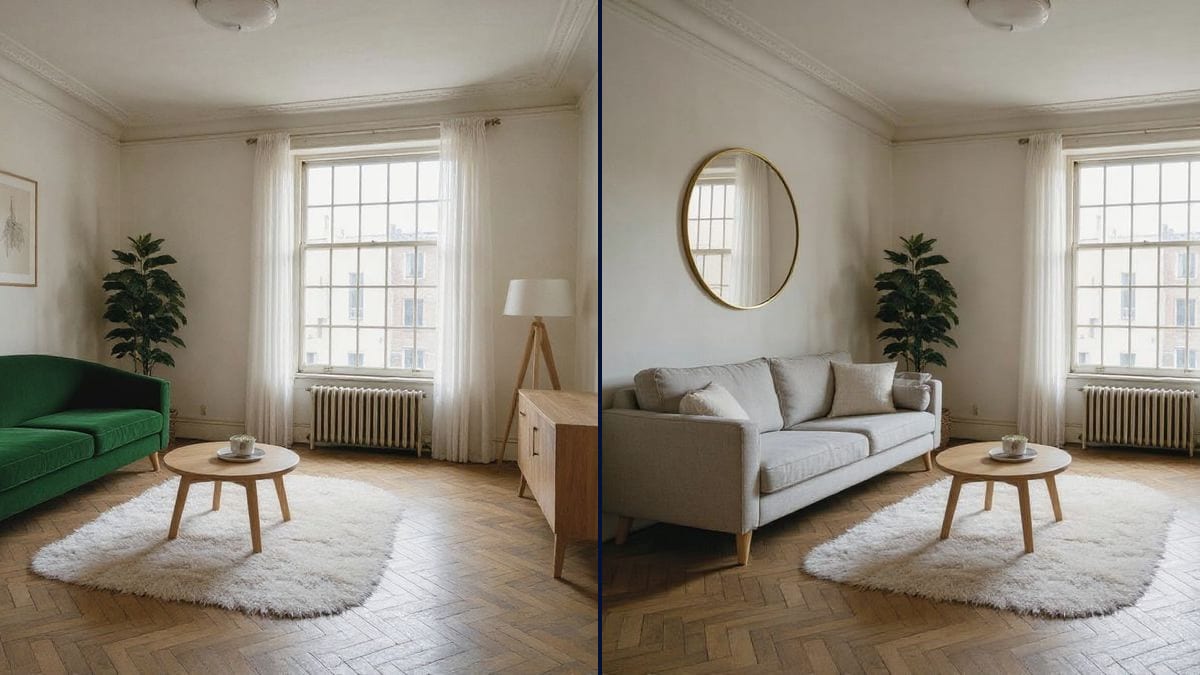
Real workflow: a living room with white walls and a grey sofa, then the same room with a green velvet sofa, and with a large round mirror instead of the two frames. Parquet, window and furniture do not move.
At a glance
Before buying a sofa, a light or a mirror, you want to see it at home. Classic retouching tools ask you to cut out, paste and redo the shadows. This workflow starts from a photo of the room and replaces a single object with the one you describe, with its shadows and its light.
The hard part is changing ONLY that object. A model that recomposes the image moves the furniture and changes the room. Flux Kontext replaces the named object and keeps everything else to the pixel; the prompt lists what does not move.
To erase without replacing, see remove an object from a photo; to furnish a whole room, home staging. The two replacements cost twelve credits.
These are the files of the workflow above, exactly as the models produced them, unretouched. The starting point is shown when there is one.
Starting point
Render
People furnishing their home, interior designers, estate agents and furniture brands who want to see an object in a real room.
A photo of the room in daylight, and the new object described with its size and place.
Photograph the whole room
From the front, in daylight, the object to replace clearly visible. The new object takes the light of your photo.
Name the object as it is
"The two frames", "the grey sofa", "the pendant light": the model must know which one to replace without guessing.
Describe the new object
Material, colour, shape, size and place: "curved green velvet sofa, brass legs, at the same place".
One object per prompt
To change two objects, make two renders. Two changes in the same prompt move the rest.
The same canvas, tuned for different needs: each variation is two or three lines of prompt away.
The sofa, table or armchair spotted in store is tried on the photo of your own living room, in your light, before ordering it.
An old-fashioned piece of furniture is replaced by a current one on the listing photo, stating that the photo is a furnishing simulation.
Two or three lighting or mirror proposals shown to the client on the photo of their room, during the appointment.
A catalogue product placed in interior photos sent by customers, for a campaign or an inspiration page.
A product sold online replaces a random object in a room photo, to show it in a real lived-in interior instead of a studio.
The frame of a shot is retouched before being animated: an unwanted object is replaced, then the image goes into a Video node.
Two changes in the same prompt move the rest of the room. One object, one render.
"The painting" in a photo with two frames leaves the model guessing. Name what is really in the photo.
Without a size, the new sofa overflows or shrinks. Write "at the same place, at the same size".
On a property listing, a retouched photo must be flagged as a simulation.
Yes: wire the product photo as a second image and name it in the prompt. Nano Banana Pro holds a product given as a photo better.
Yes, the same prompt works: a door, a gate, a tree. For the whole facade, see the facade simulation.
Give the place and the size: "same size as the current sofa". For exact dimensions, check in store.
Twelve credits, six per render on Flux Kontext. Each extra object costs six credits.
Because it changes what you name and keeps everything else to the pixel, measured on walls, the car and facades.
In the demo, no: parquet, window, lamp, sideboard and rug stay the same in both renders.
Yes, with the object removal workflow, which rebuilds the background behind it.
Yes, the new object takes the light of the photo and casts its shadows on the floor. Ask for them in the prompt.
Replace an object in a photo with AI
Use this workflowFree account, no card required. The workflow opens pre-filled in your canvas.
 Flux Kontext
 Nano Banana Pro
 GPT Image 2.5 Sunburst
 Seedream 5 Pro