Seasonal sales
Winter sales, summer sales, Black Friday: the same product photo gives the site banner and the social visual, changing only the title and the discount.
The photo of your product becomes a sale banner for your site and a square visual for social media, exact text and identical product. The workflow is shown here, no account needed.
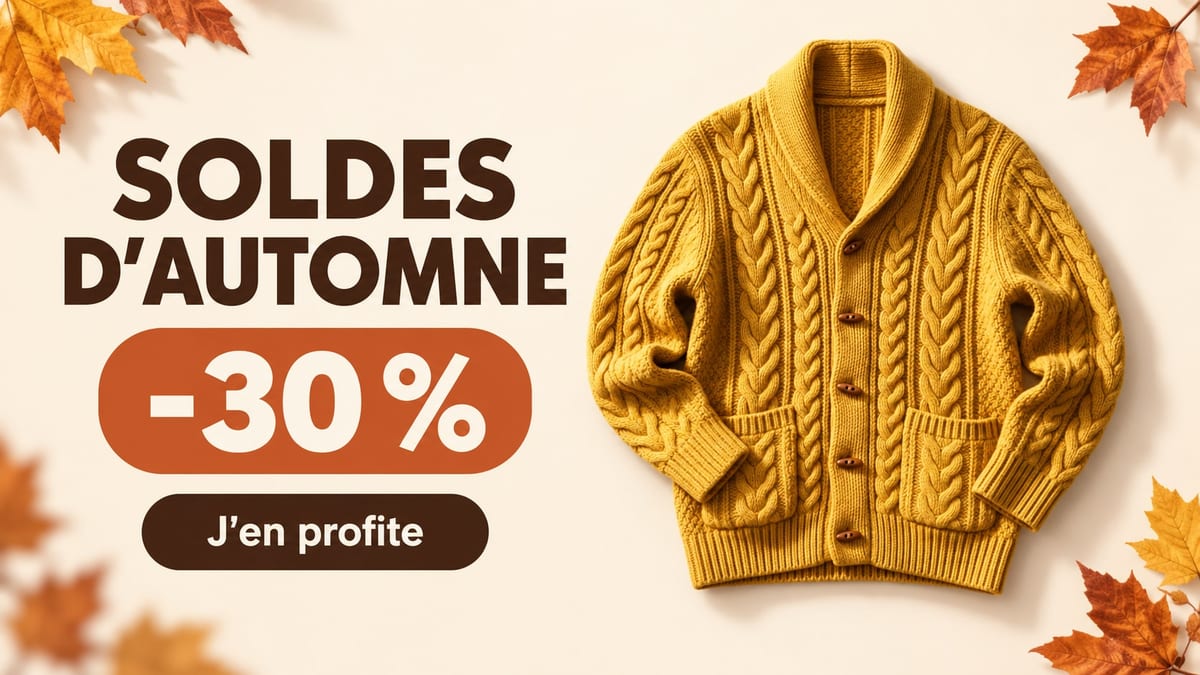
Real workflow: a yellow cardigan photographed flat, then a banner with a sale title, a -30% badge and a button in 16:9, and a square sale post. All the text is exact, the cardigan is the same.
At a glance
Sales come back four times a year, and each time you need a banner for the site, a visual for Instagram, a variant for the newsletter. This workflow starts from the product photo and returns both formats at once, with the title, the discount and the button written into the image.
The first hard part is the text: a misspelt "-30%" ruins a campaign. GPT Image 2.5 Sunburst writes without typos on a light background when every word is given in quotes and any other word is forbidden. The second is the product: Sunburst places it as is, without inventing another one.
For a poster or a freer visual, see the poster generator; for a series of posts, the carousel. The two visuals cost eighteen credits.
These are the files of the workflow above, exactly as the models produced them, unretouched. The starting point is shown when there is one.
Starting point
Render
Online shops, retailers, brands and community managers who prepare the visuals of every sale period.
A sharp product photo, the title, the discount and the button text.
Start from a sharp product photo
Flat or cut out, well lit. The product is reused as is, so give its best photo.
Write the words in quotes
Title, discount, button: each exact mention in quotes, and "nothing else written". That is what stops invented words.
Keep a light background
Cream, white, pastel. Sunburst writes cleanly on light colours and blotches dark flat areas.
Proofread letter by letter
The percentage, the accents, the apostrophe. A typo in a banner shows more than anywhere else.
The same canvas, tuned for different needs: each variation is two or three lines of prompt away.
Winter sales, summer sales, Black Friday: the same product photo gives the site banner and the social visual, changing only the title and the discount.
A twenty-four hour discount announced the same morning, banner and square ready in minutes, without waiting for a designer.
The 16:9 banner serves as the header of the sale email, with the same product and the same button as on the site for a consistent campaign.
The square is printed for the shop window or shown on the screen near the till, with the discount readable from across the street.
The promotion visual of an Etsy or Shopify store, made for each flagship product of the collection with the same discount and tone.
Two titles, two discounts, two badge colours: the variants come out side by side to test the one that gets the most clicks.
Without quotes and "nothing else", the model adds words, a fake website or a slogan. Give every word.
Sunburst blotches dark flat areas. For a black banner, test on a small format first.
A banner is read in one second: three words and a number, not a sentence.
"-30%" sometimes becomes "-3O%" with a letter O. Check every character before publishing.
Yes: duplicate an Image node and change the format, 9:16 for a story, 1:1 for a post, 16:9 for the site.
Yes, by wiring two or three photos into the same node and naming them in the prompt. Beyond three, the banner gets crowded.
Yes: give the colours in the prompt, background, title, badge. Keep a light background so the text stays clean.
Eighteen credits, nine per render on GPT Image 2.5 Sunburst in high quality.
It places a product as is and writes without typos on a light background, for less than Nano Banana Pro, measured on the infographic and the recipe card.
In the demo, yes: every mention in both visuals, letter for letter.
Yes: write the words you want in quotes in that language. Sunburst handles the Latin alphabet cleanly; proofread the others.
In the demo, yes: same cardigan, same collar, same five buttons and two pockets.
Create a sale banner with AI
Use this workflowFree account, no card required. The workflow opens pre-filled in your canvas.
 GPT Image 2.5 Sunburst
 Nano Banana Pro
 Seedream 5 Pro