Grandma's birthday
Ninety candles and a single photo, taken in the dark just as she blows them out. The bright version goes into the family album; the original stays on the phone.
Your too-dark evening photo comes back well exposed with natural colours, then in golden light, candles still lit and no grain. Workflow visible here, no account needed.
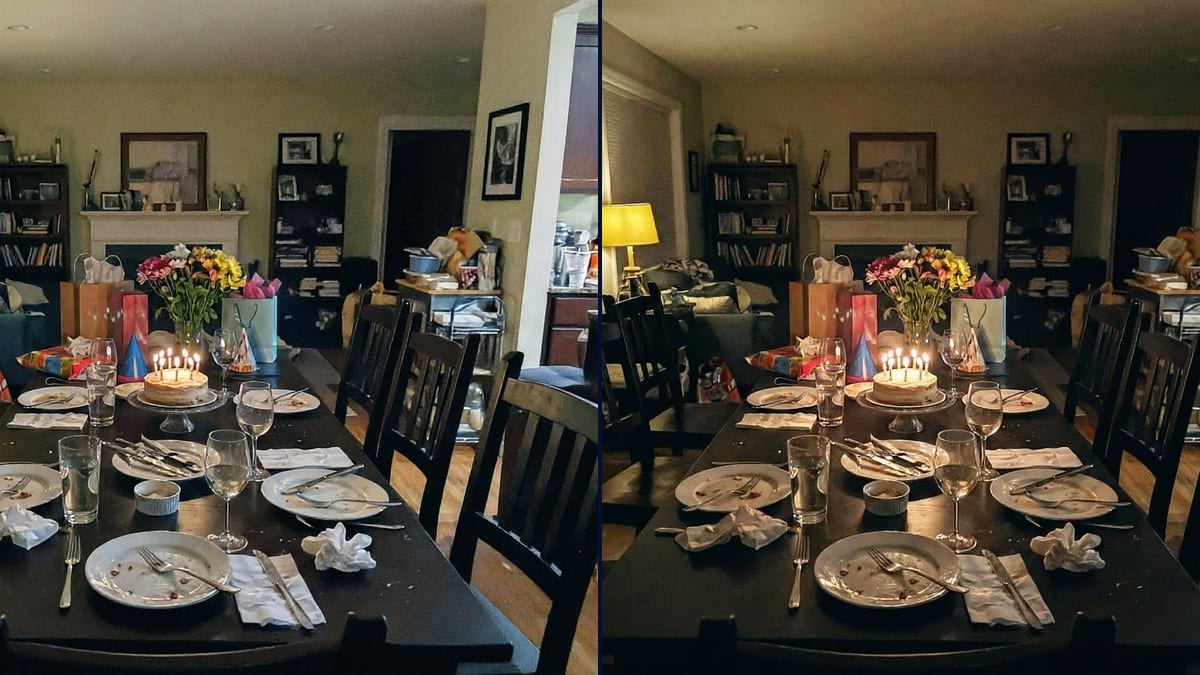
Real workflow: a nearly black table at the end of a birthday dinner, cake with lit candles, then the same scene well exposed with the whole room visible, and in warmer golden light.
At a glance
The cake comes out, someone dims the lights, a phone comes out. The result: a nearly black photo with a few tiny flames in the middle and grain everywhere. And that was the moment worth keeping. This workflow takes that photo and gives you two versions you can see: one well exposed with natural colours, one warmer, like the evening felt.
Brightening without wrecking it is the hard part. Pushing exposure brings up grain and washed-out blacks. The prompt keeps the candles lit and forbids moving anything. Flux Kontext rebuilds the scene cleanly, but it invents what was in the dark, and its two versions end up fairly close.
If the photo is blurry too, run it through the photo sharpener afterwards; for an old damaged print, see photo restoration. Both versions cost twelve credits.
These are the files of the workflow above, exactly as the models produced them, unretouched. The starting point is shown when there is one.
Starting point
Render
Families rescuing a party photo, restaurants showing their dining room at night, anyone who missed a shot without flash.
The sharpest dark photo you have, and what should come through: objects, faces, light sources to keep on.
Pick the photo
The sharpest of the batch, even if it is very dark. The model brightens well; it does not fix camera shake.
Name what matters
The cake, the faces, the table, the flowers: whatever should come through first. The rest follows.
Keep the mood
Lit candles, a lamp, fairy lights: say they stay glowing, or the photo turns into a daytime shot.
Compare with the original
Look at what was black and what appears. Background details are rebuilt, so check they don't get in the way.
The same canvas, tuned for different needs: each variation is two or three lines of prompt away.
Ninety candles and a single photo, taken in the dark just as she blows them out. The bright version goes into the family album; the original stays on the phone.
The manager wants to show the evening atmosphere on her page, but her photos are black. The warm version keeps the candles and makes the plates readable.
The reception ran on after dark and the guests shot without flash. The best phone photos become good enough for the guest book. The moments are kept, and nobody has to admit they forgot the flash.
The tree is lit, the living room is dim. The photo of the Christmas Eve table comes out readable, fairy lights still twinkling, without the grain of auto mode.
A private seller shot their flat after getting home from work and every room is dark. The natural version works as a stopgap until they reshoot in daylight.
Dinner on the terrace at sunset, one shot and almost nothing visible. Brightened, it earns its place in the summer photo book. The glasses, the plates and the faces around the table finally show up again.
The model brightens; it does not undo camera shake. Pick the sharpest photo in the batch, even if it is the darkest.
Without "the flames stay lit", the model may light the room like daytime and the atmosphere is gone.
In black areas, the model rebuilds. Books, floor or a painting may not match reality. If it has to prove anything, keep the original.
In the demo, natural and warm stay close. For a real contrast, describe the light source, candles only or ceiling light.
No: in the demo, the plates, glasses, crumpled napkins, party hats and gift bags all stayed where they were.
Yes, but name them in the prompt: "keep exactly the same faces". In the dark, a rebuilt face can shift a little, so compare.
Yes: adapt the list of objects, stage, lights, crowd, and say which light sources should stay on.
Twelve credits, six per render on Flux Kontext. A third mood on the same photo costs six more.
Because it reworks the existing photo instead of making a new one: the table, the objects and where they sit stay those of your evening.
The ones you could just make out, yes: cake, glasses, flowers. Anything in complete darkness is rebuilt by the model, which is why you keep the original.
Because "warm" is only a shade of light. For a bigger gap, ask for a room lit only by the candles, with corners left in shadow.
The format of your photo, here 4:3. Nothing is cropped.
Brighten a photo that is too dark with AI
Use this workflowFree account, no card required. The workflow opens pre-filled in your canvas.
 Flux Kontext
 Nano Banana 2.1
 GPT Image 2.5 Sunburst