The remote sales rep
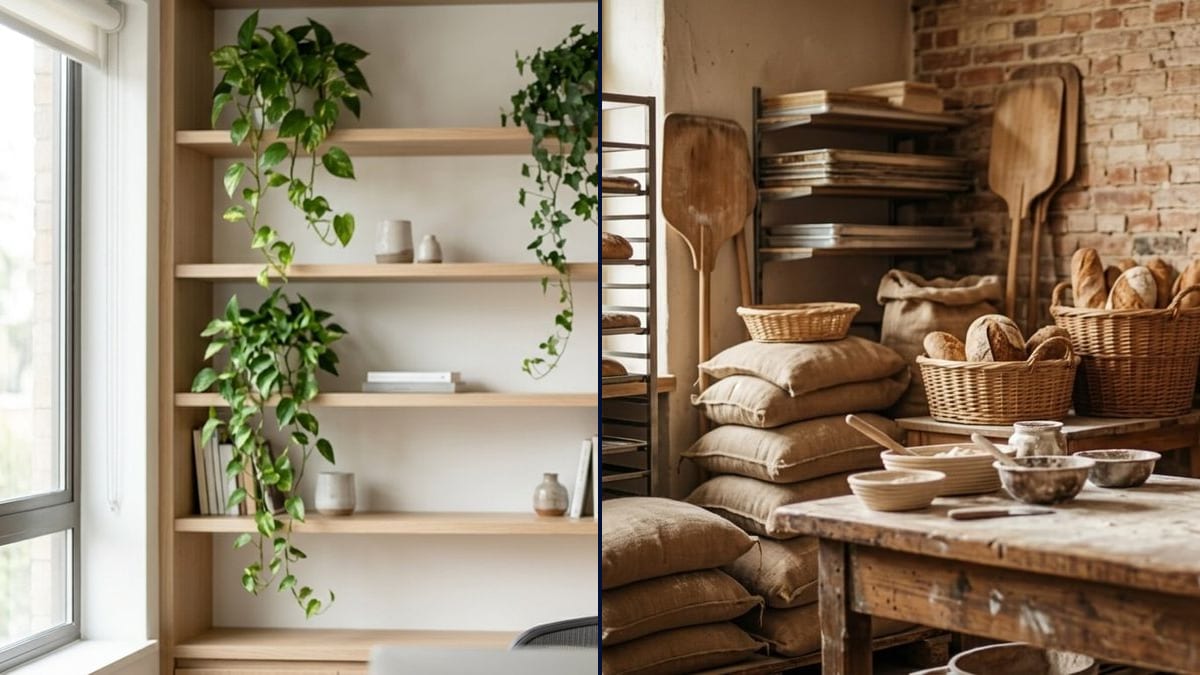
She runs back-to-back client calls from her kitchen. A bright office background with the company logo on the wall replaces the blur and puts the brand in every call.
Your logo in a realistic video call background, framed on a bright office wall or painted on workshop brick, with the middle left clear for you. Workflow visible here, no account needed.
Real workflow: the burgundy Maison Ferrand logo, a wheat sheaf in a circle, then a bright office with shelves and plants where it hangs framed in the upper right, and a bakery workshop where it is painted in burgundy on a brick wall.
At a glance
The default blur says nothing about you, and stock bookshelf backgrounds show up in every other meeting. This workflow takes your logo and makes two realistic backdrops for Zoom, Teams or Google Meet: a bright office with the logo framed on the wall, and a workshop with it painted on the brick.
The hard part is where the logo goes. On a call you sit in the middle of the frame, and a logo in the centre disappears behind your head. The prompt puts it in the upper right, asks for an empty, slightly blurred room and keeps the middle calm so the cut-out stays clean. Nano Banana 2.1 spells the name right.
For your video thumbnails, see the YouTube thumbnail; for your own profile picture, the professional headshot. Both backgrounds cost fourteen credits.
These are the files of the workflow above, exactly as the models produced them, unretouched. The starting point is shown when there is one.
Starting point
Render
Remote employees, freelancers and shop owners who meet clients on video, companies that want a shared backdrop.
The logo at a decent resolution on a plain background, the exact name in quotes, the type of room and where the logo goes.
Upload the logo
On a plain background, at a decent resolution. It will be small on screen, so a simple, high-contrast logo reads best.
Describe the room
Office, workshop, shop, classroom, studio. A room that fits your line of work looks more real than a generic set.
Keep the middle clear
Logo top right or top left, nothing in the centre. That is where you'll be, and the app cuts you out more cleanly against a calm background.
Load it into the app
In the background settings of Zoom, Teams or Meet, add the image. Do a test with the camera on before the meeting.
The same canvas, tuned for different needs: each variation is two or three lines of prompt away.
She runs back-to-back client calls from her kitchen. A bright office background with the company logo on the wall replaces the blur and puts the brand in every call.
He talks to the miller and the accountant from the back of the shop. The workshop background with his logo on the brick looks more genuine than a tropical beach.
A small company gives every employee the same branded background. In a client meeting, the ten tiles share one setting without looking like they came from a stock library.
He runs virtual classes all day. A calm background with his logo top right stays visible even when he shares his slides and his camera shrinks to a thumbnail.
A coach sees clients over video from a small flat. A bright practice-room background with her logo framed on the wall looks professional without showing her living room.
The volunteers of a local food bank meet online every month. A background with the association's logo makes meeting screenshots usable on the website and in the newsletter.
It stays hidden behind your head for the whole meeting. Put it high up, in a corner, at a height that clears your shoulders.
Packed shelves, patterns, objects right behind you: the app's cut-out mixes them into your hair. Keep the centre empty.
In a ten-person meeting grid, a delicate logo turns into a smudge. Make it bigger or use a simplified version.
The light in your room and the light in the background need to match. Test before the meeting, and switch backgrounds if you look cut out.
Usually, yes: video call apps mirror your own preview. Everyone else sees the logo the right way round.
Yes: the render is 16:9, the format of webcams and virtual backgrounds in those apps.
Describe it in the prompt: wall colour, furniture, plants, window. The model invents a similar room, not an exact copy.
Fourteen credits, seven per render on Nano Banana 2.1. A third room with the same logo costs seven more.
Because it takes your logo as a reference and builds a whole room around it, with the right light and the name spelled correctly, as a print or painted on a wall.
Slightly, yes: you stay sharp and the room sits behind you. The blur in the demo is light; ask for "clearly blurred" if you want more separation.
Yes: add the line in quotes, say where it goes, and remove "No other text" from the prompt. Keep it short.
Yes, and better: with a green screen behind you, the app cuts you out more cleanly and the backdrop looks more natural.
Make a custom video call background with AI
Use this workflowFree account, no card required. The workflow opens pre-filled in your canvas.
 Nano Banana 2.1
 Flux Kontext
 GPT Image 2.5 Sunburst