The channel that's starting out
A clean first banner on the day the first video goes up, with the channel's name and promise, without waiting for a designer.
Two YouTube channel banners with your name and tagline written correctly, the essentials in the area visible on phones. Describe your channel, the workflow does the rest. Visible here, no account needed.
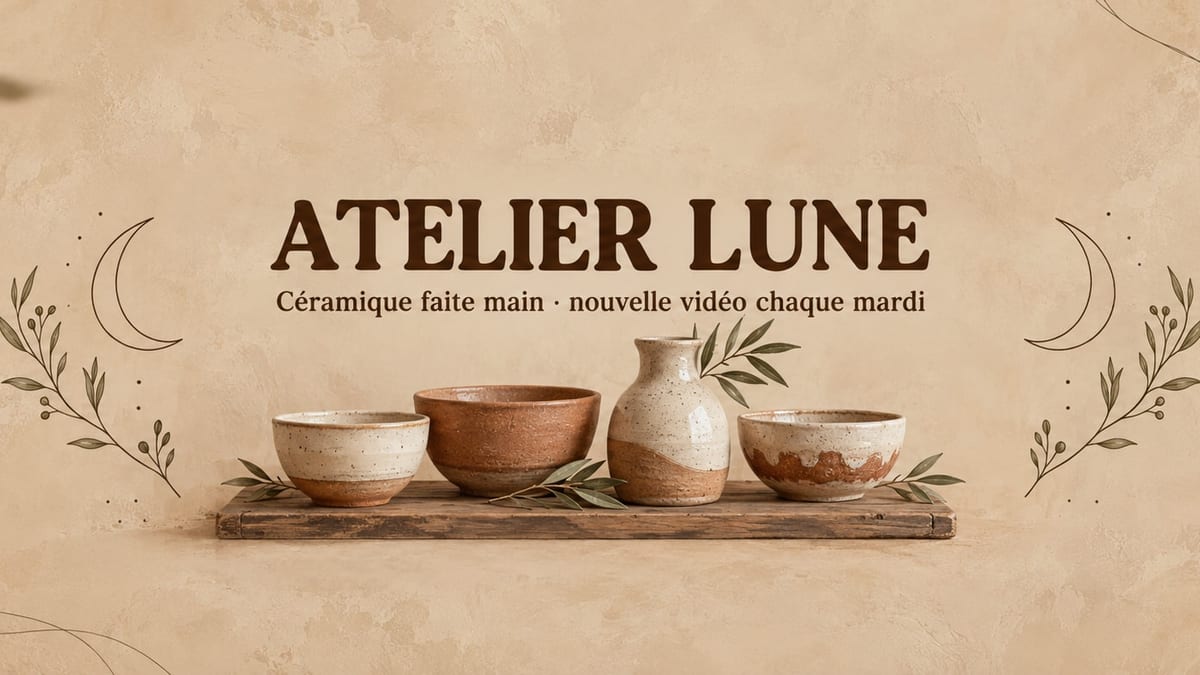
Real workflow: two prompts for an invented ceramics channel, two 16:9 banners, "ATELIER LUNE" and its tagline exact, everything in the central band.
At a glance
A YouTube channel banner is the first thing people see on its page, and it isn't the same size on every screen: whole on a TV, cut down to a central band on a phone. This workflow makes two designed around that constraint.
The hard part is that central band. A name written near the edge disappears on most phones. The prompt puts the name, the tagline and the subject in the centre and leaves only decoration on the sides; the text, in quotes, comes out without a mistake.
For your video thumbnails, see the YouTube thumbnail; for a channel without showing your face, the faceless video. Both banners cost eighteen credits.
These are the files of the workflow above, exactly as the models produced them, unretouched. The starting point is shown when there is one.
Render
Creators starting or refreshing their YouTube channel, craftspeople and shops that post videos.
Describe your channel
The subject, the mood, the colours: a ceramics channel on a sand background, a cooking channel in bright colours.
Write the name and tagline
In quotes, in order: the name big, a short tagline under it, your upload schedule if you have one.
Keep everything central
The sentence about the central band stays in the prompt: without it, the name can end up outside the area visible on phones.
Upload it to the channel
16:9. Check the TV, desktop and phone previews when uploading: the name must stay readable everywhere.
The same canvas, tuned for different needs: each variation is two or three lines of prompt away.
A clean first banner on the day the first video goes up, with the channel's name and promise, without waiting for a designer.
"New video every Tuesday" under the name: the banner tells visitors when to come back, which helps keep subscribers.
A banner redone for a new series or season, in the same style as the previous one, to mark a fresh start for the channel.
A potter, a bakery or a garage that posts videos makes a banner in its own image, with the logo in the centre.
The banner and thumbnails in the same palette, with the YouTube thumbnail, for a page recognisable at a glance.
The same idea as a profile banner for other networks, by changing the node's format and keeping the text in the centre.
On a phone, only the area around the centre shows. Everything that matters goes in the centre, decoration on the sides.
A list of networks, times, a slogan, an address: the banner becomes unreadable. A name and a short tagline are enough.
The page already shows its buttons and logo; those on the banner duplicate them and mislead visitors.
Sunburst writes poorly on a dark flat colour. For a dark banner, switch the node to Nano Banana Pro and proofread.
The node renders 16:9, the ratio required for a banner. Enlarge it with the Enhance node if the minimum size calls for it.
In the demo every word is, accents included. Still proofread before uploading: a long invented name can come out with a typo.
Yes: add a Media node with your portrait, wired into the Image node, and ask for it in the central band.
Eighteen credits, nine per banner on Sunburst at high quality. A third version costs nine credits more.
Because it writes the name and tagline letter for letter on a light background, accents included, measured on these banners.
In the demo, yes: name, tagline and subject fit in the central band, the sides only carry moons and sprigs.
No: describe your own world. Characters and brand logos belong to their rights holders.
Yes: write the name and tagline in the language you want, in quotes. The model copies them as they are.
Make a YouTube channel banner with AI
Use this workflowFree account, no card required. The workflow opens pre-filled in your canvas.
 GPT Image 2.5 Sunburst
 Nano Banana Pro
 Flux 3
 Seedream 5 Pro