The painted timber front
English green, gold letters, brass wall lamps. It is the direction that reassures a neighbourhood clientele, and the one council committees accept most readily.
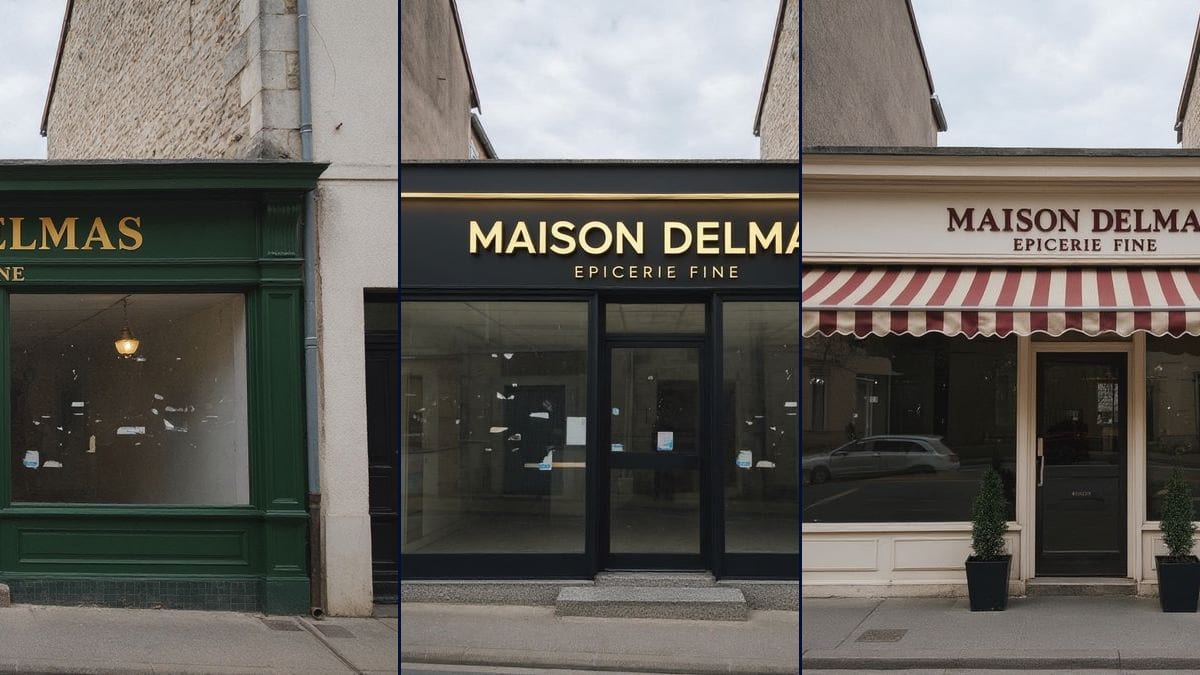
A photo of your shopfront goes into three Image nodes that redo it three ways: timber and English green, black and brass, cream with a striped awning. The full workflow is visible here, no account needed.
The real workflow: the photo of the starting shopfront wired to three Flux Kontext nodes, one direction per node. The three renders are the demo's own, taken from the pavement opposite.
At a glance
A shopfront is redone once a lease, and it decides who pushes the door open. The sign maker's quote arrives with a sketch, sometimes with nothing at all, and you are left projecting from a paint swatch. This workflow replaces the sketch with three images of your actual shop, taken from the pavement opposite, with the same facade and the same openings.
The first direction is a classic grocer's front, timber painted English green with gold hand painted letters. The second is contemporary, matte black steel and brushed brass lettering. The third is a warm bistro, cream with a burgundy striped awning extended over the pavement. Three quotes, three images.
It is the little brother of the facade renovation simulation, and Flux Kontext for the same reason: on an outside building it edits the photo without moving an opening, where models that redraw recompose the street. On a shopfront, a door shifted by twenty centimetres shows at once. The three renders cost eighteen credits.
These are the files of the workflow above, exactly as the models produced them, unretouched. The starting point is shown when there is one.
Starting point
Render
Shop owners before works, and interior architects who want to show three options on the real shop.
Shoot from the pavement opposite
Square on, holding the camera straight, with the whole shopfront and a little of the neighbouring buildings. Step back rather than zoom: too tight a frame makes the edges get invented.
Wait for a quiet street
Whatever is in frame is locked, parked cars and passers-by included. Early in the morning or on a Sunday, the shopfront is alone in the image.
Write the name of your sign
The name sits between quotes in all three instructions, replace it with yours and keep it short. A sign carries a name and a line under it, not a sentence.
Generate all three, then adjust a shade
"Generate all" produces the three shopfronts. Then you change one colour in a single instruction and rerun that node: the other two keep their render.
The same canvas, tuned for different needs: each variation is two or three lines of prompt away.
English green, gold letters, brass wall lamps. It is the direction that reassures a neighbourhood clientele, and the one council committees accept most readily.
Matte black steel, large panes, brushed brass lettering, a terrazzo threshold. It gives a contemporary look to an old unit without touching the building itself.
Cream, burgundy, a scalloped valance, two bay trees either side of the door. The render mostly shows what the awning changes about the shade cast on the pavement.
Duplicate a node, change the single shade in the instruction, rerun. Two renders of the same front answer better than a colour chart held against the glass on a rainy day.
A shopfront project sells badly out loud and well in pictures. Three renders from the same angle get everyone to agree, or bring the disagreement out straight away.
For a building or a house rather than a commercial ground floor, the facade renovation simulation locks the roof and the upper floors as well.
A shopfront shot obliquely gives a distorted render that cannot be compared from one project to the next. Stand square on, on the opposite pavement, camera straight.
A van parked in front of the window stays in all three renders, and sometimes the model renovates it too. Wait for a quiet moment.
A name and a line under it fit. An address, a phone number and opening hours on top do not: the letters distort and the sign becomes unreadable.
Local advertising rules often impose dimensions, materials and sometimes colours. Check before falling in love with a render.
It can
It cannot
No. Many councils regulate signs, awnings and colours, and a permit is often needed for an awning that overhangs the pavement. The image explains the intent, it does not replace any document in the file.
On a short name written between quotes, yes, as the demo's three renders show with their accents. Read it on each image: a misspelt sign on a quote wastes everyone's time.
This workflow only touches surfaces and joinery. Widening a bay or moving the door is structural work, and the lock in the instruction forbids it precisely so the render stays comparable to what exists.
Eighteen credits for the three directions, six per render. The cost shows on each node before you click, and rerunning a single project costs only six credits.
Yes, and it is a good use before signing a lease: photograph the front as it stands, and look at what it could become with your name on it.
That is the best use. They see what you have in mind and tell you straight away what is feasible, at what price, and what the local rules allow.
The method is the same: photograph the stall or the window square on, lock what does not move, describe three different treatments.
No, it works on what the photo shows, and a shop window mostly returns reflections. For the interior, photograph from inside and describe the room.
Redo your shopfront with AI: three fronts, one photo
Use this workflowFree account, no card required. The workflow opens pre-filled in your canvas.
 Flux Kontext
 GPT Image 2.5 Sunburst
 Nano Banana Pro
 Seedream 5 Pro