The typographic kraft
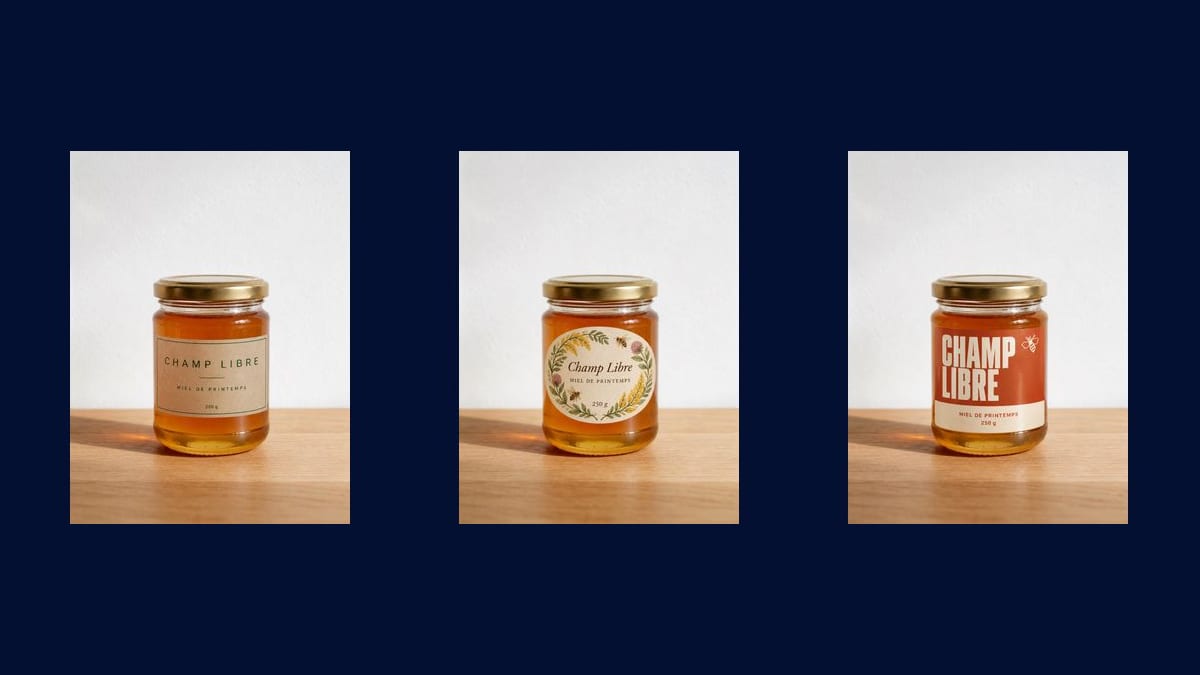
Plain paper, a thin rule, a name in widely spaced capitals. It is the most common direction among small producers, because it costs the least to print and ages the best.
The photo of your bare product goes into three Image nodes that put three different labels on it, brand name and wording written into the image: typographic on kraft, botanical watercolour, bold colour block.
The real workflow: the photo of the bare jar wired to three GPT Image 2.5 Flare nodes, one label direction per node. The three renders are the demo's own, with the same jar.
At a glance
A grower, a brewer, a soap maker: the product is ready long before the label, and the label is what decides the sale on the shelf. This workflow starts from the photo of your bare container and shows it dressed three ways, with no mockup, no designer and no proof sheet ordered from the printer.
The three directions look nothing alike: a typographic kraft where only the name counts, an oval label framed by a botanical watercolour, and a terracotta colour block with massive lettering. The brand name, the wording and the weight are written into the image, accents included, and you replace them with your own straight in the instruction.
Do not confuse this with the shop mockups: there your artwork exists and has to be preserved pixel for pixel, here it does not exist yet and the model draws it. GPT Image 2.5 Flare at the standard tier writes those three lines without a mistake for three credits, where GPT Image 2 asks eight without doing better. The three labels cost nine credits.
These are the files of the workflow above, exactly as the models produced them, unretouched. The starting point is shown when there is one.
Starting point
Render
Producers, makers and small food or cosmetics brands who want to see several labels on their real jar.
Photograph the container BARE
No sticker, no leftover glue, no label from the previous batch. Whatever is already written on the jar comes back in all three renders, often half rubbed out.
Stand it straight on a plain background
A worktop and a plain wall are enough. The model keeps the scene as it is, so a good starting photo gives three good product shots, and a wonky photo three wonky ones.
Replace the text between quotes
Brand name, wording, weight: everything between quotes after the word "exactly" is copied as is. Keep it short, a label carries three lines, not a paragraph.
Generate all three, then proofread letter by letter
"Generate all" produces the three labels. Then read the name and the weight on each render: that is the only check that matters before showing the images to anyone.
The same canvas, tuned for different needs: each variation is two or three lines of prompt away.
Plain paper, a thin rule, a name in widely spaced capitals. It is the most common direction among small producers, because it costs the least to print and ages the best.
A wreath of flowers and two bees around a cream oval. It is what markets and delicatessens look for, and the hardest thing to get out of a designer for a first small batch.
Two flat areas, massive lettering, one pictogram. The direction that shows from a distance on a shelf, and the one that survives best when shrunk to a thumbnail in an online shop.
Keep the direction and change the flavour or the variety in each instruction. Three honeys, three beers, three soaps: the range holds together because only the middle line moves.
Seeing your name written on the real jar beats reading it in a document. Duplicate a node, change the name between quotes, and look at which of the two stands up on a shelf.
Once the direction is chosen, product photography stages the container for the listing, and food photography takes care of the plate.
The model puts the new label over the old one, and a printed edge is left sticking out. Peel everything off, clean off the glue, then take the photo.
Ingredients, allergens, address, barcode: past three or four lines the letters start to distort. The mandatory wording goes on at the final layout stage.
Without it, the model rewords or translates your brand name. With it, it copies it. That word is the difference between a usable label and a pretty approximation.
Screen colours are not the printer's, the lettering is not a real typeface, and nothing is vector. The render sells the idea, it does not produce the label.
No, and that matters: a printer wants a vector file, a bleed and the full legal wording. The render is there to choose a direction and to show it, then you or a designer redraw it properly.
On three short lines given between quotes, yes, and the demo's three renders show it in French. Read them anyway: an image model can always get a letter wrong.
Yes, the mechanic is the same: photograph the bare container and describe the label. A very curved or very shiny surface distorts the text more, so frame the front face square on.
Nine credits, three per render, that is nine cents for the three directions. It is what lets you try six or nine of them before deciding, which no proof sheet allows.
Yes, describe them in the instruction, naming the shade or giving its reference. The model gets close to the colour, it does not calibrate it: for a faithful result, that is settled at printing.
This workflow draws the label, it does not reproduce an existing file. To put your logo as it is on a product, the shop mockups are made for that.
The images can, under the conditions set out in the guide on the rights on AI images. The real label has to be redrawn properly and carry the wording the law requires for your product.
Yes, in any of the site's fourteen. Give the line in the language you want and say so in the instruction, exactly as the demo does in French.
Design your product label with AI
Use this workflowFree account, no card required. The workflow opens pre-filled in your canvas.
 GPT Image 2.5 Flare
 Nano Banana Pro
 Recraft V4.1