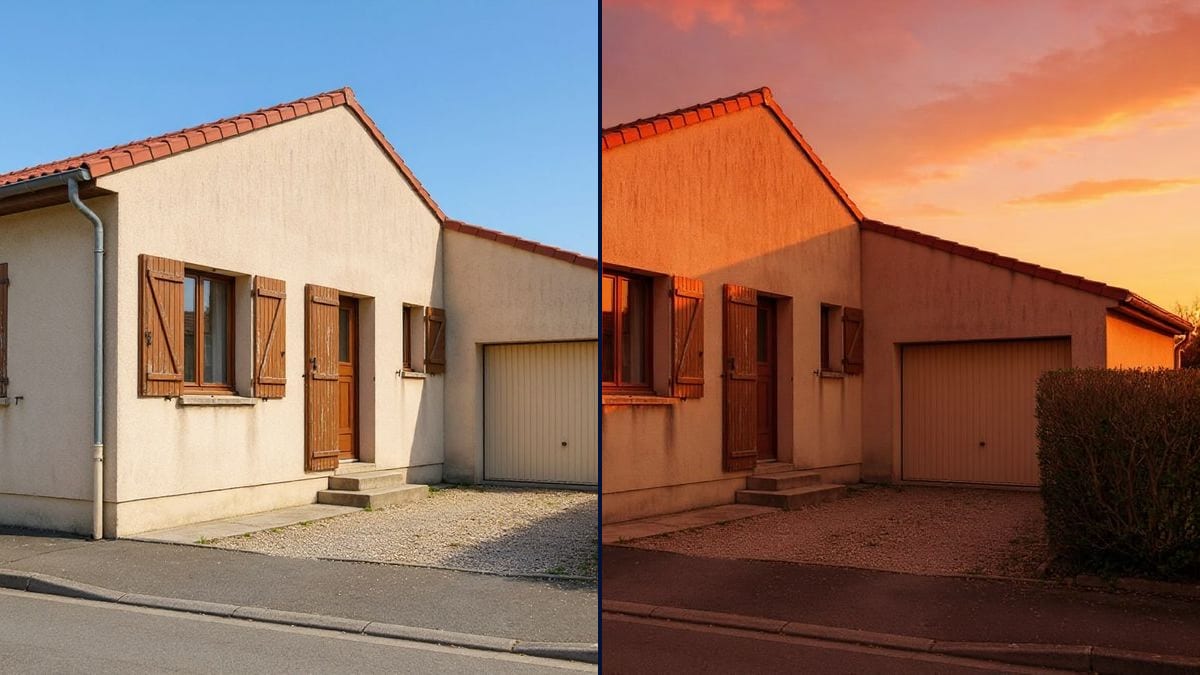
The estate agent in winter
Three weeks of grey and the listing has to go live this week. He keeps his photos, swaps the sky and notes in the listing that the image has been edited.
Your photo under a grey sky gets a blue summer sky, then a sunset, with the light on the facade matched to the new sky. Workflow visible here, no account needed.
Real workflow: a beige bungalow with brown shutters under a flat grey sky, then the same house under a blue sky with two small clouds, and under an orange and pink sunset that turns the walls gold.
At a glance
The photo of the house is taken, the framing is right, and the sky is the colour of dishwater. For a listing, a brochure or a planning file, it drags everything down. This workflow keeps your photo and changes only the sky, in two versions: blue summer sky, then sunset.
Light is what gives it away. A blue sky over a dull facade is an obvious composite. The prompt asks for the light on the house to match the new sky, shadows included. Flux Kontext cuts cleanly around the roof and the hedge and leaves the walls as they are, stains and all.
To take the same photo into winter or autumn, see the season changer; to repaint the walls, the facade makeover. Both skies cost twelve credits.
These are the files of the workflow above, exactly as the models produced them, unretouched. The starting point is shown when there is one.
Starting point
Render
Estate agents, holiday let owners, builders, photographers and communications teams.
A sharp outdoor photo with a clean roofline, and the sky you want with its light.
Pick the photo
Well framed, sharp, with a clean roofline or treeline. A flat white sky is easier to replace than a half-blue one.
Describe the sky
Summer blue with a few clouds, sunset, stormy: colour, clouds, time of day.
Ask for the light
Without that line, the house stays lit by the original grey. Say what light should fall on the facade.
Check the edges
Zoom in on the ridge, the gutters and the hedge. That is where a sky swap gives itself away.
The same canvas, tuned for different needs: each variation is two or three lines of prompt away.
Three weeks of grey and the listing has to go live this week. He keeps his photos, swaps the sky and notes in the listing that the image has been edited.
The facade shot was taken on a rainy day. A blue sky and late-afternoon light make it presentable without touching the building itself. Guests still see the real cottage, just on a better day.
Handover day was overcast. The builder puts the finished house under a summer sky for the website, and the house itself stays exactly as delivered. No need to wait for a sunny day to go back.
The couple came out of the registry office under a white sky. He offers a sunset version alongside the original for the album. The couple choose which one goes on the wall, and the original stays in the set.
The sky was hazy at the top. He keeps the mountain and the framing and swaps the white for a clean blue before printing and framing it. The ridge and every rock stay as they were.
The photo of the new school was taken on a grey morning. The comms team puts it under a blue sky for the cover of the council newsletter. The school itself is shown exactly as built.
A sunset over a grey-lit facade fools nobody. Always ask for matching light on the building.
A setting sun behind a facade lit from the front doesn't hold together. Think about which way the house faces and the time of day.
An oversaturated or too-perfect sky makes a real house look like a CGI render. A few clouds look more believable.
In a listing, a swapped sky that suggests a different outlook can come back at you. Say it's edited; nobody minds.
No: same shutters, same roof, same gravel, same hedge. Only the sky and the light on the facade change.
Yes: ask for a starry night sky and lit windows. For a proper day-to-night shift, the day to night tool goes further.
Yes, on any outdoor photo. Replace the list of what stays with what is in your picture: people, trees, mountain.
Twelve credits, six per render on Flux Kontext. A third sky, stormy or night, costs six more.
Because it replaces one area and keeps the rest: the roof and hedge edges stay crisp and the facade is not redrawn.
Mostly. In the demo, the sunset is orange and pink, but the purple asked for barely shows. Push one colour harder if it matters.
No. The stains on the render and the worn shutters are still there. To get rid of them, use the facade makeover.
The format of your photo, here 4:3. Nothing is cropped.
Replace the sky in a photo with AI
Use this workflowFree account, no card required. The workflow opens pre-filled in your canvas.
 Flux Kontext
 Nano Banana 2.1
 GPT Image 2.5 Sunburst