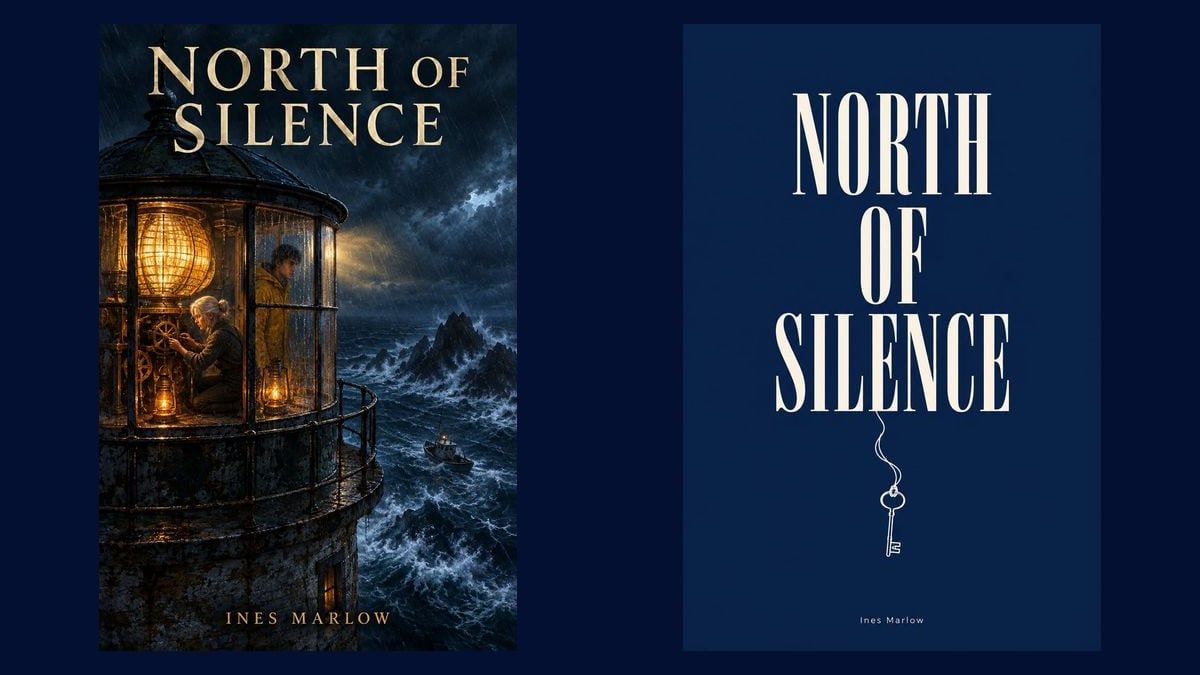
The cover of a novel
This is the demo: an illustrated concept and a typographic concept from the first chapter, the title and the author name written in the image. Replace the PDF, put your title, and compare both as thumbnails.
The manuscript or synopsis in PDF dropped on the canvas: two Text nodes each write a cover concept, one illustrated, one typographic, and two Image nodes on GPT Image 2.5 Flare render them with the title and the author name written inside the image, for two credits each. The whole workflow is visible without an account.
The real workflow: the first chapter of a novel in PDF in a Media node, Claude Sonnet 5 for the two concepts, GPT Image 2.5 Flare for the two covers in 3:4. The texts shown are the models' answers, untouched.
At a glance
A cover is judged in one second, on an online bookshop thumbnail: the title readable, an image that says the genre, nothing else. The PDF goes into a Media node, and two Text nodes read it through their "Image or PDF to analyze" port: the first writes an illustrated concept, central image, palette, light; the second a typographic concept, the title as the graphic element, a symbolic object, two colours.
The two concepts are wired to two Image nodes on GPT Image 2.5 Flare, the model that writes a short title inside the image without distorting it, for two credits. The title and the author name are in the instructions: put yours, and the cover carries them. For a long title or a subtitle, GPT Image 2 holds several lines better.
The demo dresses "North of Silence", an original novel written for the example, with an illustrated concept and a typographic concept. Duplicate a pair of nodes for a third concept, switch the format to 1:1 for a platform thumbnail, and keep the version that reads from a distance.
These are the files of the workflow above, exactly as the models produced them, unretouched. The starting point is shown when there is one.
Render
Self-published authors and small publishers who want a cover readable as a thumbnail without a designer for every attempt.
A manuscript or a synopsis in text PDF, one page is enough, and your exact title with the author name in both instructions.
Drop the manuscript or synopsis
A Media node receives it. A one-page synopsis is enough for a cover: the concepts hang on the genre, the place and the central object, not on chapter details.
Put your title and your name in both instructions
The two Text nodes each write a concept with the exact title and the author name: that is what the image model will write. Title in short capitals, name small, nothing else in the image.
Render the two covers
The Image nodes on GPT Image 2.5 Flare receive the concepts by cable and each render a cover in 3:4, two credits. Regenerate the one you do not like, or change a colour in the concept.
Compare and export
Look at both as thumbnails, reduced: the one whose title stays readable wins. Export as JPEG from the node; an Enhance image node upscales it for print.
The same canvas, tuned for different needs: each variation is two or three lines of prompt away.
This is the demo: an illustrated concept and a typographic concept from the first chapter, the title and the author name written in the image. Replace the PDF, put your title, and compare both as thumbnails.
Ask the illustrated concept for a clean situation image and the typographic concept for a plain background with the title in large: an essay sells on its title, not on a scene.
Switch the Image nodes to 1:1 and make the title even larger in the instructions: the cover must stay readable at two centimetres on a phone.
Keep the typographic concept and change only the title and the symbolic object in the instruction: the volumes are recognised at a glance on a shelf.
A third Image node on GPT Image 2 with the back-cover blurb, in 3:4: more lines, so the model that holds them. A Retouch node assembles the three panels.
Beyond six words or two lines, the letters distort. Shorten the title in the instruction, or switch the node to GPT Image 2, which writes a whole paragraph cleanly.
The instructions end with "no other text": without that line, the model adds a tagline or a fake publisher logo. Keep it, and regenerate if a word appears.
Always judge reduced: a thin title on a busy image disappears at the size of an online bookshop thumbnail. The typographic concept exists for that.
On a short title in capitals, yes, with accents: that is what GPT Image 2.5 Flare does best for two credits. A title of more than six words or a subtitle: switch the node to GPT Image 2, or add the text in a Retouch node.
About ten credits: two PDF readings and two Flare images at two credits. A third concept costs five more credits. The price is shown on every node before you click.
Yes: wire it to the Image node's image port and ask the concept to compose the title around it. Flare edits an image as well as it creates one.
3:4 in the demo, close to paperback formats and most platforms. The Image node also offers 2:3 on some models and 1:1 for a thumbnail.
The render comes out at 1152 by 1536 pixels in medium quality. For print, switch the node's quality to high, or upscale the file with an Enhance image node.
Yes, everything is in the instruction: name at the top, at the bottom, in capitals or not. What the concept writes, Flare places. Just check the name line stays short.
As many as pairs of nodes: two in the demo, the templates' rule. A third concept is one more pair and five credits.
Create a book cover with AI
Use this workflowFree account, no card required. The workflow opens pre-filled in your canvas.
 GPT Image 2.5 Flare
 Claude Sonnet 5.5
 Nano Banana Pro