The real workflow: the same 480x270 shot feeds both upscalers, and the canvas shows what separates them.
At a glance
You provide
1 video
What the workflow produces
2 videos of 10s in 1080p, 16:9
Canvas structure
4 nodes wired by 2 connections
Models wired in
ByteDance Upscaler, Topaz Proteus
Cost of one full run
about 21 credits, roughly $0.25
Account
The demo is visible without an account; generating requires a free account, trial credits included
A digitised tape, a video that travelled through a messaging app, an old camcorder file: four hundred and eighty pixels wide, compression blocks on the movement, softness. This workflow enlarges it to 1080p. The video enters the Media node and feeds two Enhance nodes, each set to a different upscaler.
The two are not set the same way, and that is the thing to remember. ByteDance Upscaler aims at a target resolution, 1080p, 2K or 4K, whatever the source size. Topaz Proteus applies a factor, two or four times. From 480x270, the 1080p target and the factor of four land in the same place, 1920x1080.
One difference shows up in the edit more than on screen: the frame rate. On the demo shot, measured on 1 September 2026, ByteDance came out at thirty frames per second and Topaz kept the twenty-five of the source. It is not down to the model: the output frame rate is now a setting of the node for both upscalers, 24, 25, 30, 50 or 60 frames per second, 30 by default. A shot that has to join an edit at twenty-five is therefore set to 25, whichever upscaler you use, and the change a video's frame rate page covers that setting. Both enlargements cost twenty-five cents.
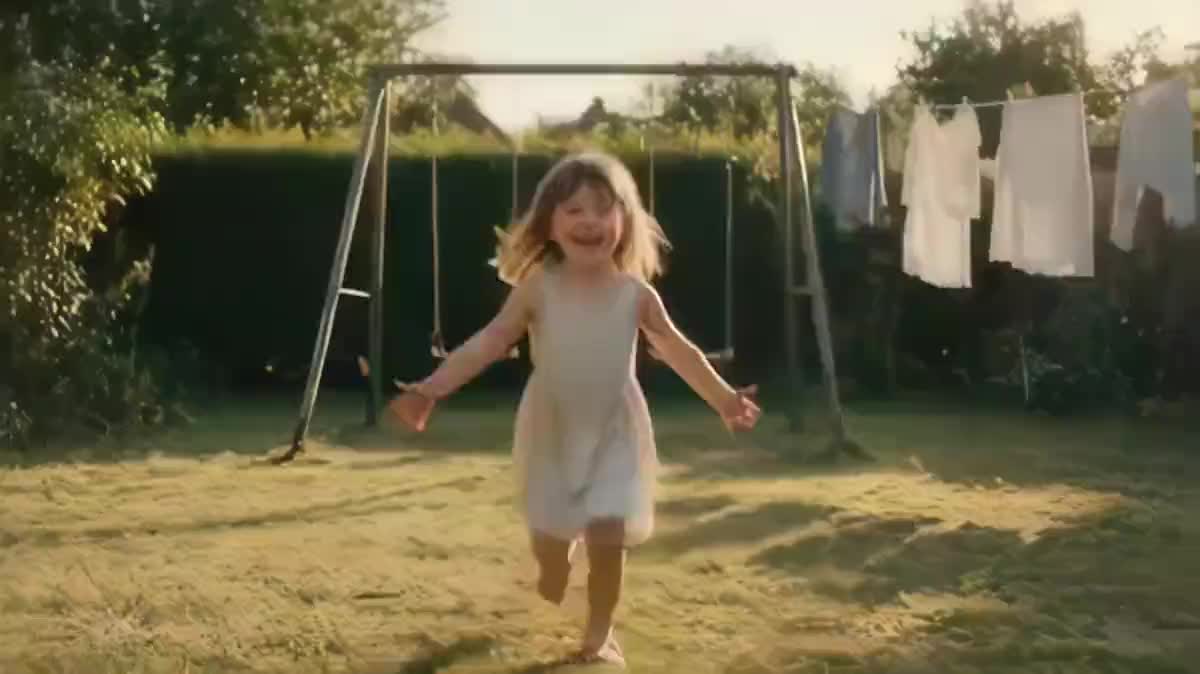
Actual renders from the demo
These are the files of the workflow above, exactly as the models produced them, unretouched. The starting point is shown when there is one.
Starting point
Your low-resolution video
Render
The upscale to a target resolution, by ByteDanceGenerated with ByteDance UpscalerThe upscale by factor, by TopazGenerated with Topaz Proteus
How it works
1
Import the damaged video
The Media node shows the dimensions and length of the source, and each Enhance node announces the output size before generating. One minute maximum per pass.
2
Set the target for ByteDance
1080p, 2K or 4K. It aims at that resolution whatever you give it, which is handy when a whole edit has to come out at the same format.
3
Set the factor for Topaz
Two or four times the source. This is the setting to prefer when you know where you are starting from. The output frame rate is set separately, in the same node.
4
Compare before you edit
The source video stays on the canvas next to both renders. Look at the material in the grass and foliage, and set the output frame rate to match your edit if the shot has to cut against others.
Variations and use cases
The same canvas, tuned for different needs: each variation is two or three lines of prompt away.
A digitised family tape
The direct use case: a VHS or a camcorder card taken to digital, coming out at 480 or 576 lines. Set the output frame rate to the source's, 25 for a PAL tape, because a home movie is usually cut together with other shots from the same era and the frame rate has to stay the same throughout.
A video recovered from a messaging app
Anything that travels through an app comes back recompressed and shrunk. Enlarging recovers part of what the compression ate, without promising anything about faces in the background.
Unifying an edit at 1080p
Rushes from different sources, some at 720p, others at 480: ByteDance brings them all to the same target without you working out a factor per shot. That is exactly what setting by resolution is for.
Enlarging a generated render
A video out of a Video node wires straight into an Enhance node. Useful when the generating model tops out at 720p and the deliverable calls for 1080p.
Preparing a shot for a large screen
A screening or a big display forgives less than a phone. A pass to 2K or 4K through ByteDance on already clean shots avoids the mush the player's own stretching produces.
The stills version of the same gesture
For a still image rather than a shot, the sharpen a photo workflow does the same with the two image upscalers, and poses the same trade-off between fidelity and invention.
Common mistakes
Ignoring the frame rate change
The mistake you pay for in the edit. The node outputs at thirty frames per second by default, even if the source was at twenty-five, and the enlarged shot no longer cuts against its neighbours. If the edit is at twenty-five, set the output frame rate to 25.
Enlarging before cutting
The price is counted by the second. Enlarging five minutes to keep only ten seconds costs thirty times what you needed. Cut first, enlarge second.
Expecting a miracle from an empty shot
An upscaler reveals detail drowned in noise, it does not create absent information. A face ten metres away in a 480-pixel shot will stay a blurred face, only bigger.
Chaining two enlargements
A 4x then another does not improve sixteen times, it stacks the artefacts of the first pass and doubles the bill. Go back to the best available source rather than multiplying passes.
What this workflow changes, and what it does not
It can
Bring a video up to 1080p or more
Reduce compression noise
Process a short clip in minutes
It cannot
Invent details missing from a heavily degraded shot
Choose on the image, not on the frame rate: ByteDance if you want a precise target resolution without doing the maths, Topaz if you think in factors and prefer a softer render. The output frame rate is set in the node for both, to match your edit. On material, Topaz rebuilds more and pulls warmer, ByteDance stays closer to the original.
Is the sound preserved?
Yes, the source audio track passes through the upscale. Verified in a real request: a video with sound comes back with its sound, which saves you from re-syncing it afterwards.
What is the maximum length?
One minute per pass. Beyond that, cut the shot before enlarging: the price is counted by the second, and a long enlarged shot costs as much as its pieces but fails more often.
What does a full run cost?
Twenty-five cents for both enlargements on five seconds. The price shows on each node before you click, and it is counted by the second: a shot twice as long costs twice as much.
Can I go up to 4K?
Yes, ByteDance offers 1080p, 2K and 4K, and Topaz goes to 2160p through the factor. The price follows the output resolution, so 4K costs four times 1080p for the same length.
Are my videos used to train a model?
No. Your media stays in your workspace, it is not handed to any training run. The question matters all the more since these are often home movies.
Can I do this from my phone?
Yes, the canvas works on mobile and the video is picked straight in the Media node. The creating on mobile guide covers the canvas gestures by finger.
How is this different from the player enlarging it?
A player showing 480 on a 1080 screen stretches the pixels without adding anything, and the softness grows with them. Here a model rebuilds detail from what exists in the image, which is a different job.
 Topaz Starlight Precise 2.6
 ByteDance Upscaler