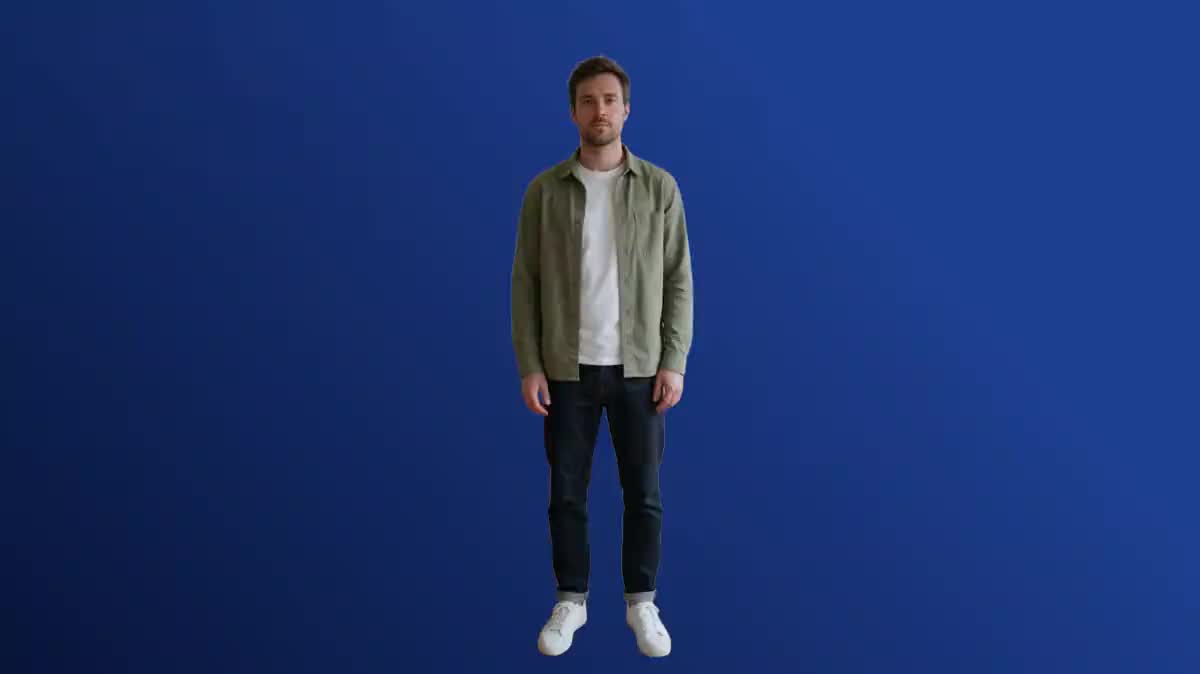
The presenter keyed over the slides
Film yourself to camera in any room, cut out, and place yourself in the bottom right of your slides in the Montage node. The result looks like a studio, without a studio.
A video shot on a phone, no green screen: Bria isolates the subject and removes the whole set, frame by frame. The same shot as a transparent webm and as an mp4 on a green background, sound kept. The whole workflow is visible without an account.
The real workflow: the starting shot in a Media node, wired to two Video nodes set to Bria video background, one transparent, the other on a green background. Both renders are those of the demo.
At a glance
No green screen, no studio: an ordinary video goes in, the subject comes out alone, with their hair, their fine edges and their motion, frame by frame. What remains can be placed on any backdrop, in the Montage node or in your editing software.
The Video node set to Bria video background offers four backgrounds: transparent, for compositing afterwards, as a webm with an alpha channel; green, for a classic key in a tool that prefers chroma; black or white, for direct display. The sound of the video is kept. The price follows the duration, measured on the file, and shows before you click.
The demo starts from the vanish shot, a man standing in a living room, and renders it transparent then on green. A presenter to cut out, a floating product, a person to move into another setting: the gesture is the same.
These are the files of the workflow above, exactly as the models produced them, unretouched. The starting point is shown when there is one.
Starting point
Render
A video where the subject stands out from the background, well lit, without abrupt camera moves.
Upload the video
A subject well separated from the set, without abrupt camera moves, without transparency (glass, veil). Up to thirty seconds per pass. A phone is enough.
Choose the background
Transparent to composite, green for a key in your software, black or white to display as is. The choice changes the container, webm or mp4, not the price.
Generate
The node measures the duration and shows the exact price. The subject comes out cut out, sound included, in a few dozen seconds.
Composite
Place the transparent webm on an image or a video in the Montage node, or import it into DaVinci Resolve, Premiere or CapCut. Green keys out anywhere.
The same canvas, tuned for different needs: each variation is two or three lines of prompt away.
Film yourself to camera in any room, cut out, and place yourself in the bottom right of your slides in the Montage node. The result looks like a studio, without a studio.
An object filmed on a table comes out alone, on a transparent background, and lands on a brand visual or a product photo generated on the canvas.
Cut out the person, generate a setting in an Image node, stack the two in the Montage node: the same take happens at the beach, in an office, on a stage.
A short cut-out gesture becomes an element to place on a reel or a story, with its transparency. Three seconds are enough, the price follows.
A shot produced by the talking avatar or by a talking photo cuts out like a shoot, to integrate it into an existing video.
If your editing chain expects a chroma key, choose the green background: a standard mp4, readable everywhere, that keys out with the usual tool.
A grey sweater on a grey wall gives hesitant edges. Contrast the subject and the set when shooting, or change outfit.
A fast pan blurs subject and background together. Camera set down or held calmly, the cutout follows without a hitch.
Glass, veil, smoke, backlit hair: the model has to decide where the image does not. Avoid them in the shot to cut out.
Safari does not play the transparency of VP9 webm. For a render on iPhone, composite first in the Montage node and export an mp4.
It can
It cannot
No, that is the whole point: the model separates the subject from the set on an ordinary video. A calm, contrasted background helps, a green screen is no longer necessary.
The VP9 webm with transparency imports into DaVinci Resolve, Premiere and CapCut on desktop, and plays in Chrome, Edge and Firefox. Otherwise, choose the green background and key it out.
Yes, the audio track of the source is carried as is into the cut-out file. Nothing to resynchronize.
Thirty seconds per pass. Beyond that, cut in the Montage node and process the pieces, then edit them back together.
The price follows the duration of the video, per second, whatever the background chosen, and shows on the button as soon as the video is wired. A technical failure is refunded.
Yes, exactly like a shoot: wire the output of a Video node into the Bria node. It is the simplest way to place a generated character on a real backdrop.
The Retouch node cuts out an IMAGE. Here it is every frame of a video, with consistency from one frame to the next, and the sound kept.
Yes, the file comes out in the definition and format of the input video. Nothing is cropped or resized.
Remove a video background with AI, no green screen
Use this workflowFree account, no card required. The workflow opens pre-filled in your canvas.
 Bria fond vidéo
 Wan 3.0
 Seedance 2.5
 Kling V3