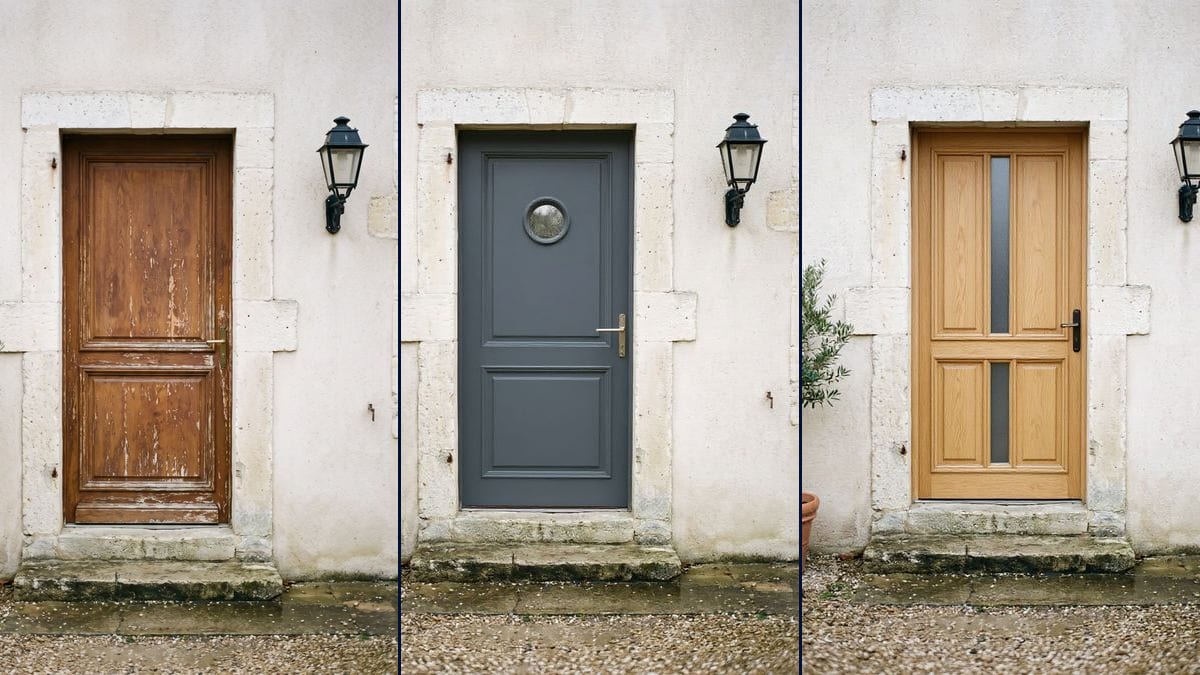
Before ordering from the joiner
Two or three colours tried on the real entrance one evening at home, before signing a quote for a door that will stay thirty years.
Your front door photo with two new designs, fitted in the same opening, wall and step unchanged. To choose colour and style before ordering. Workflow visible here, no account needed.
Real workflow: the old wooden door of a stone house, then the same entrance with a slate blue door with a porthole and with a light oak door. Opening, frame and lantern don't move.
At a glance
A front door gets chosen from a catalogue, on a small cut-out picture, and stays for thirty years. This workflow starts from a photo of your entrance and shows two new doors in place of the old one, so you can judge colour and style on your own house.
The hard part is keeping YOUR opening. A model that rebuilds the picture widens it or changes the frame. Flux Kontext replaces only the door, at the same width and height, and leaves wall, step and surroundings as they were.
For the whole house front, see the house front simulation; for floors, the tile visualizer. Both doors cost twelve credits.
These are the files of the workflow above, exactly as the models produced them, unretouched. The starting point is shown when there is one.
Starting point
Render
Homeowners replacing their door, joiners presenting a quote, sellers preparing a listing.
A straight-on photo of the door and its frame, and a description of the new door.
Photograph the door straight on
The whole door, its frame and a bit of wall around it, in daylight. The model keeps that framing.
Describe the new door
Greyish colour, material, glazing, handle: as on a joiner's order form, without a brand name.
Pin the opening
Same width, same height, same frame, same position. Without that sentence, the opening can get wider.
Compare and share
Two doors on the same entrance, side by side, to show the joiner or the neighbours before ordering.
The same canvas, tuned for different needs: each variation is two or three lines of prompt away.
Two or three colours tried on the real entrance one evening at home, before signing a quote for a door that will stay thirty years.
The tradesperson photographs the client's entrance and shows the future door in the existing opening, before even taking measurements.
A clear picture of the intended door on the real house front, to attach to a request for approval before the works.
A new door changes a listing's first impression; you test the effect before deciding whether the change is worth the cost.
The door tried alongside a render or shutters with the house front simulation, for a consistent look.
A tradesperson or shop owner tries a glazed door for their premises, alongside the redone shop window.
Without "same width, same height, same frame", the model can widen the opening or add a fanlight.
Seen at an angle, the door is hard to replace and the perspective gives the edit away. Shoot it straight on.
A brand tells the model nothing about the design. Describe the colour, material, glazing and handle.
"Blue" comes out loud on a large surface. Write "greyish slate blue", as in a joiner's colour chart.
No: wall, frame, step, lantern and plants stay those of the photo. Only the door is replaced.
Colour, material and handle follow well. The detail of the design can vary: in the demo, the "slatted" door came out panelled.
Yes, in the same prompt or one more node: name the shutters and their colour, and keep the sentence about the opening.
Twelve credits, six per door on Flux Kontext. A third door on the same photo costs six credits more.
Because it replaces one element and keeps the rest of the photo pixel for pixel: you see YOUR house, not another one.
In the demo, yes: same stone frame, same step, same lantern, same olive tree on both doors.
The format of your photo, here 3:4, the shape of a door. A horizontal photo stays horizontal.
It's a preview, not a measurement. The joiner measures the opening and offers the model closest to the picture.
Visualize a new front door on your house with AI
Use this workflowFree account, no card required. The workflow opens pre-filled in your canvas.
 Flux Kontext
 Nano Banana Pro
 GPT Image 2.5 Sunburst