Parent and child
A mother's face turns into her daughter's, photographed at the same age: a few seconds of video for Mother's Day or a family birthday.
Two portraits are aligned on the same background, then one face turns into the other in a continuous five-second video. The workflow is shown here, no account needed.
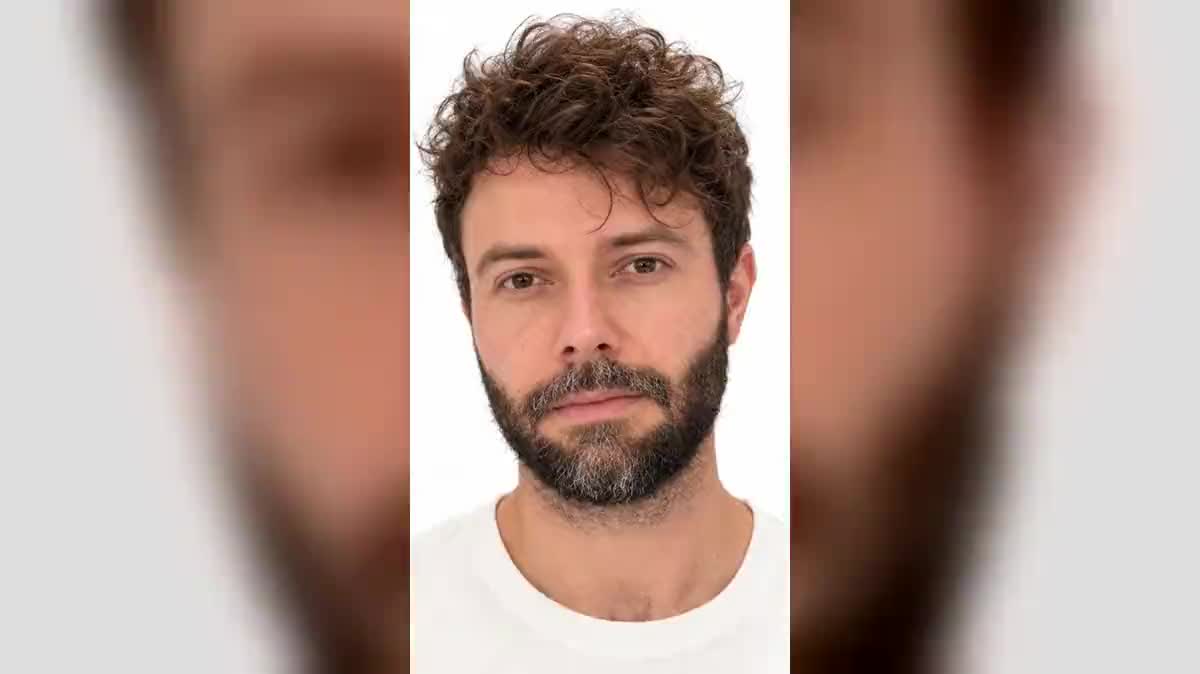
Real workflow: Frank's selfie and a portrait of a woman taken in a park, the woman reframed like Frank on white, then five seconds where the beard fades and the hair changes into her face.
At a glance
Morphing one face into another keeps coming back on social media: a parent becoming their child, one person across generations, two friends swapping faces. Classic tools make a crossfade, where you see two faces on top of each other. This workflow makes a true continuous transformation.
The hard part is alignment. Two portraits taken any old way have neither the same background nor the same head size, and the model then zooms or crossfades. The Image node first aligns the second portrait on the first; Wan 3.0 then gets the first as start frame and the second as end frame.
It is the same mechanic as the Vertigo effect and day to night. To watch one face age, see age your face. The alignment and the morph cost seventy-nine credits.
These are the files of the workflow above, exactly as the models produced them, unretouched. The starting point is shown when there is one.
Starting point
Render
Content creators, families, music video makers and brands who want one face to turn into another on video.
Two sharp front portraits, looking at the camera.
Pick two front portraits
Whole faces, sharp, looking at the camera. Background and light can differ: the next step aligns them.
Align the second on the first
Same background, same head size, same eye line. The prompt keeps the face and only changes framing and light.
Give the video its start and end
The first portrait as start frame, the aligned second as end frame, camera still. Wan 3.0 does the transformation in between.
Refuse the crossfade
The prompt forbids cuts and crossfades. If the two faces overlap in transparency, run it again.
The same canvas, tuned for different needs: each variation is two or three lines of prompt away.
A mother's face turns into her daughter's, photographed at the same age: a few seconds of video for Mother's Day or a family birthday.
Grandfather, father, son: a chain of morphs edited end to end in a Montage node, played at a family reunion or a wedding.
Two friends or two characters swap faces for the length of a vertical 9:16 video, for a TikTok or a Reel that plays on surprise.
A string of faces transforms to the beat of a song, in the spirit of morphing music videos, each morph timed to a strong beat of the track.
An actor turns into their made-up character in a few seconds, to promote a film, a series or a stage play on social media.
A brand face turns into another, then another, to show the diversity of its customers in a single campaign video.
Different head sizes and backgrounds: the model zooms or fades instead of transforming. Align first.
A profile face does not overlap with a front face. Two front portraits, always.
A camera moving forward during the morph mixes two movements, and the transformation reads poorly.
Transforming a real person's face and publishing it is done with their consent.
Yes: duplicate the Video node, the end face of the first becomes the start of the second, then edit the videos in a Montage node.
Yes, by aligning a front photo of the animal on the portrait. The closer the framing, the cleaner the morph.
Yes: set the Video node to ten seconds, priced by duration. The transformation stretches accordingly.
Seventy-nine credits: nineteen for the alignment on Nano Banana Pro, sixty for five seconds of Wan 3.0 in 720p.
Because Wan 3.0 transforms what overlaps. Two aligned faces give a morph, two offset faces a crossfade.
In the demo, yes: same face, same smile, same hoops, only the background and framing change.
Yes, by aligning the second portrait on the first one's background rather than on white. Describe that background in the prompt.
Yes, restore them first if they are damaged: otherwise the scratches transform with the face.
Morph between two faces with AI
Use this workflowFree account, no card required. The workflow opens pre-filled in your canvas.
 Nano Banana Pro
 Wan 3.0
 Kling V3
 Seedance 2.5