The dance reel without filming yourself
A trending choreography, your photo, and the reel is ready in vertical: the motion video gives the format, the character comes from you. Post as is or add the music in the Montage node.
A dance video and a full-length photo: Kling 3.0 Motion Control has the person in the photo replay the choreography, face and outfit kept. The same dance on two characters. The whole workflow is visible without an account.
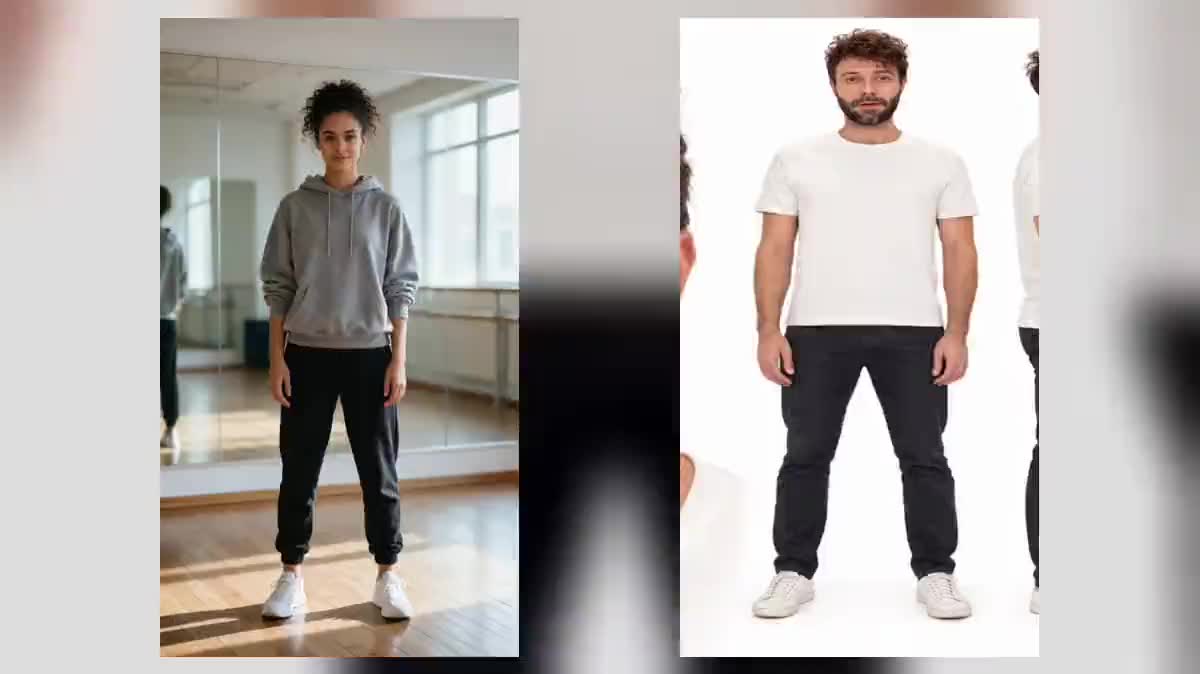
The real workflow: the dance video in a Media node, two full-length photos in two others, and two Video nodes set to Kling 3.0 Motion Control that receive the video through the video port and each character through the image port.
At a glance
Motion transfer means taking the gesture of a video and giving it to someone else. A choreography filmed by a dancer, a full-length photo of you: the rendered video shows you dancing exactly like her, with your face, your outfit, and the frame of the starting video. It is what effect platforms sell under the names motion transfer or Genjutsu.
The Video node set to Kling 3.0 Motion Control takes two inputs: the motion video and the character image. The output lasts as long as the video, up to thirty seconds, and is paid per second of that video, measured on the file. Nothing to describe: the prompt is optional and only serves the setting.
The demo makes two characters dance on the same choreography: a full-length photo and a collectible figurine. Any image of a whole character works: a generated portrait, a mascot, a video game character.
These are the files of the workflow above, exactly as the models produced them, unretouched. The starting point is shown when there is one.
Starting point
Render
A motion video where a single person is visible full length, and a full-length photo of the character, arms and legs clear.
Find or film the motion video
A single whole person, without a cut, from the front or three-quarters, on a calm background. Three to ten seconds are enough for a reel. The demo uses a dance generated on Kling.
Take a full-length photo
Standing, facing the camera, arms by the sides, whole from feet to head, plain background. A pose close to the start of the video helps the model start right.
Wire both into the node
The video into the video port, the photo into the image port. The node measures the video and shows the exact price before you click, at 720p or 1080p.
Generate, then change character
The character replays the motion exactly. For another person, replace only the photo: the motion video stays wired.
The same canvas, tuned for different needs: each variation is two or three lines of prompt away.
A trending choreography, your photo, and the reel is ready in vertical: the motion video gives the format, the character comes from you. Post as is or add the music in the Montage node.
A drawn mascot, whole, on a plain background, replays a filmed dance: a human gesture on a brand character, without an animator. The line and colours stay those of the drawing.
That is the second example of the demo: the collectible figurine steps off its base and dances. An object, a toy, a statuette, anything with two arms and two legs.
One motion video, one photo per person, one node per person: the same choreography performed by ten colleagues, for a team video edited back to back.
Transfer works on any motion: a runway walk, a wave, a product demonstration, a sports move. The outfit walk demo makes a good motion video.
Film yourself doing the gesture, generate a full-length character in an Image node, and give it your motion: you act, it appears.
The model follows a single skeleton. With two dancers, it picks wrong or blends. Frame one person, whole, from start to end.
The character must be whole: the model needs the legs and feet to move them. A bust photo forces it to invent the lower body.
Arms crossed on the photo, arms raised at the start of the video: the first frames fumble. A neutral pose, arms by the sides, starts cleanly.
The gesture comes from the video, not from the text. The prompt serves the setting, the light or the camera move. Leaving it empty is often the best choice.
No: the dance comes from the motion video, not from you. You provide a full-length photo, and the model has you perform the choreography.
Yes: the photo provides the character, the video only provides the gesture. The face, haircut and outfit stay those of the photo.
Thirty seconds in video framing, ten in image framing. A longer video is refused before generation, with no charge: cut it first in the Montage node.
Yes, a switch on the node keeps the sound of the motion video. Otherwise, put your music back in a Montage node.
The price follows the duration of the motion video, per second, at 720p or 1080p, and shows on the button as soon as the video is wired. A technical failure is refunded.
Technically yes, if you have the right to. The safest is to film the gesture yourself or to generate the motion video on the canvas, as in the demo.
In video framing, the output takes the frame and set of the motion video, with your character in it. To keep the photo's setting, choose image framing, limited to ten seconds.
Wan 3.0 draws on a video to guide a generated shot; motion transfer replays the gesture exactly, frame by frame, on your character. For a precise choreography, this is the one.
Make a photo dance with AI (motion transfer)
Use this workflowFree account, no card required. The workflow opens pre-filled in your canvas.
 Kling 3.0 Motion Control
 Wan 3.0
 Seedance 2.5